
eSIM Not Working on iPhone? 10 Easy Fixes for 2026
An eSIM should be the easiest way to get connected. You scan a QR code, tap install, and your data works. Most of the time it does. But when it doesn't, an iPhone can be frustrating to troubleshoot because the settings are scattered across several menus.
This guide walks through 10 fixes in the order you should try them. Start at the top and stop as soon as your connection comes back. Most eSIM problems are solved by the first four steps.
First, Confirm the eSIM Is Actually Installed
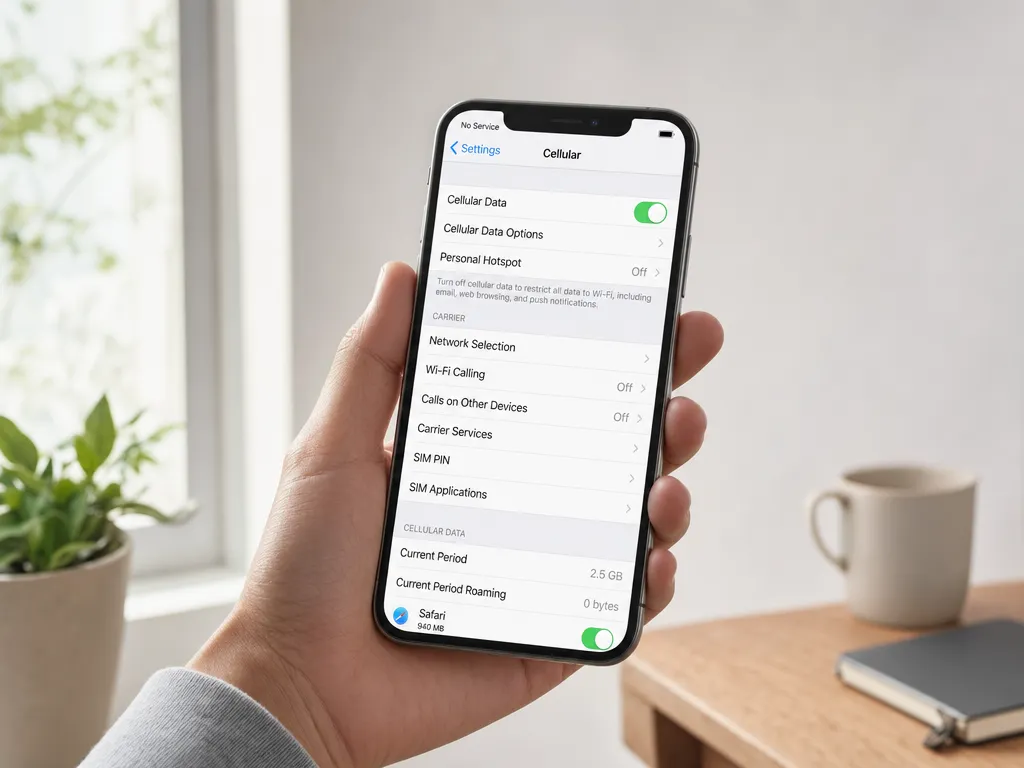
Before blaming your plan, check that the profile lives on your phone. Open Settings > Cellular (or Mobile Service on some regions). You should see your eSIM listed by its label, for example "Travel" or the carrier name.
If it isn't there, the QR code was never installed. Reinstall it. If you bought your plan through SMSBulk eSIM, you can reopen the QR from your dashboard and either scan it or use the iOS direct install link, which skips scanning entirely.
If the eSIM is listed but greyed out or shows "No Service," continue below.
Fix 1: Toggle the Line On
An installed eSIM can still be switched off. In Settings > Cellular, tap the eSIM label and make sure Turn On This Line is enabled. This single toggle catches more "my eSIM isn't working" cases than any other step.
Fix 2: Set the eSIM as Your Data Line
Having two lines (your home SIM plus a travel eSIM) means iOS needs to know which one carries data. Go to Settings > Cellular > Cellular Data and select your eSIM.
While you are there, turn off "Allow Cellular Data Switching." That feature lets your phone fall back to your expensive home line, which can rack up roaming charges without you noticing.
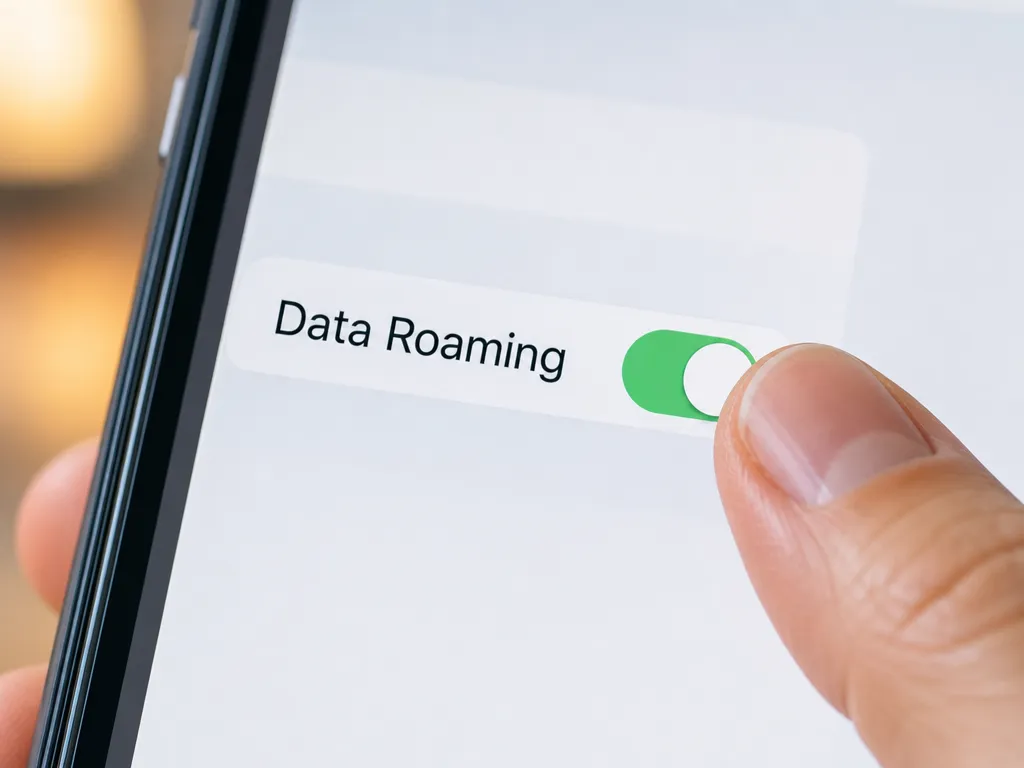
Fix 3: Enable Data Roaming for the eSIM
This is the single most common reason a travel eSIM shows no internet. Even though the plan is local to the country you're visiting, iOS treats the eSIM connection as roaming.
Tap your eSIM in Settings > Cellular, then turn on Data Roaming. Nothing will cost extra. Your prepaid plan already covers the data. Without this switch on, you will see full signal bars but no working connection.

Fix 4: Restart Your iPhone
It sounds basic, but a reboot forces the phone to re-register with the local network. After activating a new eSIM, a restart often turns "Searching..." into a live signal within a minute.
Power off completely, wait ten seconds, then power back on. Give it up to two minutes to find a tower, especially when you have just landed in a new country.
Fix 5: Check Your Activation Timing
Many travel eSIMs activate the moment they connect to a network, not the moment you install them. If you install the profile at home and it starts counting down or connecting immediately, you may burn validity before your trip.
Best practice: install the eSIM before you travel, but keep the line turned off until you land. Then enable it on arrival. If your plan has a fixed start date, double check it in your purchase confirmation.
Fix 6: Update to the Latest iOS
Cellular and eSIM handling improve with almost every iOS release. If your phone is running an old version, activation bugs are more likely.
Go to Settings > General > Software Update and install anything pending. Do this over Wi-Fi before you rely on the eSIM, not while stranded without data.
Fix 7: Refresh Carrier Settings
iPhones download small "carrier settings" files that tell them how to talk to each network. A stale file can block data.
With Wi-Fi on, go to Settings > General > About. If an update is available, a prompt appears within a few seconds. Tap to install it. This step quietly fixes a lot of "connected but no data" situations.
Fix 8: Reset Network Settings
If you have tried everything above, wipe the network configuration. Go to Settings > General > Transfer or Reset iPhone > Reset > Reset Network Settings.
This clears Wi-Fi passwords and cellular preferences but does not delete your eSIM. After the reset, re-check Fixes 1 through 3, because your data line and roaming toggles will return to defaults.
Fix 9: Manually Select the Network
Sometimes the phone latches onto a partner network with weak or no data coverage. Force it to look again.
Go to Settings > Cellular > [your eSIM] > Network Selection, turn off Automatic, and let the phone scan. Pick a major local operator from the list. If the first choice fails, come back and try another. This trick often rescues connections in border regions and remote areas.
Fix 10: Confirm Your Plan Still Has Data and Validity
Before assuming the phone is broken, rule out the obvious. Your plan may have run out of data or hit its expiry date.
Log into your provider account and check the remaining balance. With SMSBulk, the platform behind this blog, your eSIM data usage sits in the same dashboard as your wallet, so you can top up or buy a fresh plan in a minute. If you were close to the limit, a small purchase gets you back online instantly.
A Note for Travelers: eSIMs Are Data Only
Here is something that trips people up. A travel eSIM gives you internet, but it usually does not come with a phone number that receives SMS. So when a bank or app tries to text you a verification code, nothing arrives.
That gap matters when you are abroad and locked out of an account. The clean fix is to pair your data eSIM with a virtual number. SMSBulk lets you buy an SMS verification number from countries worldwide on the same account, so you receive codes for WhatsApp, Google, banking apps, and more while your eSIM handles the data. If you want the full picture, our guide on whether an eSIM can receive verification SMS explains exactly how the two work together.
Quick Troubleshooting Checklist
Run through this list in order when your eSIM misbehaves:
- Is the line turned on? Settings > Cellular > eSIM label.
- Is the eSIM your data line? Cellular Data setting.
- Is Data Roaming on? Required for almost all travel eSIMs.
- Did you restart after activating?
- Is iOS up to date and carrier settings refreshed?
- Does the plan still have data and time left?
If all six pass and you still have no signal, the profile itself may be faulty. Contact your provider to reissue it.
Why Some eSIMs Fail More Than Others
Not every eSIM is equal. Cheap or unofficial profiles sometimes route through congested networks, or the seller reuses a single profile across many customers, which triggers activation errors. Buying from a transparent provider with clear pricing and per-customer profiles avoids most of these headaches. For a deeper look at choosing well, see our breakdown of the best eSIM for international travel and how it compares to a physical SIM.
Device compatibility also matters. Your iPhone must be carrier-unlocked to use a third-party eSIM. Older or region-locked models can reject profiles outright, no matter how many times you reinstall.
Get Started with SMSBulk
If you want an eSIM that just works, SMSBulk eSIM covers 200+ destinations with transparent pricing, instant QR delivery, and iOS direct install so you skip the QR scan entirely. Everything runs from one account, and you can pair your data plan with a virtual number to receive SMS codes wherever you land. Top up your wallet, pick your destination, and be online before you leave the airport.
Готовы легко верифицировать аккаунты?
Получайте мгновенные SMS-коды из 190+ стран менее чем за 30 секунд.