
How to Create a Gmail Account Without Phone Number (2026)
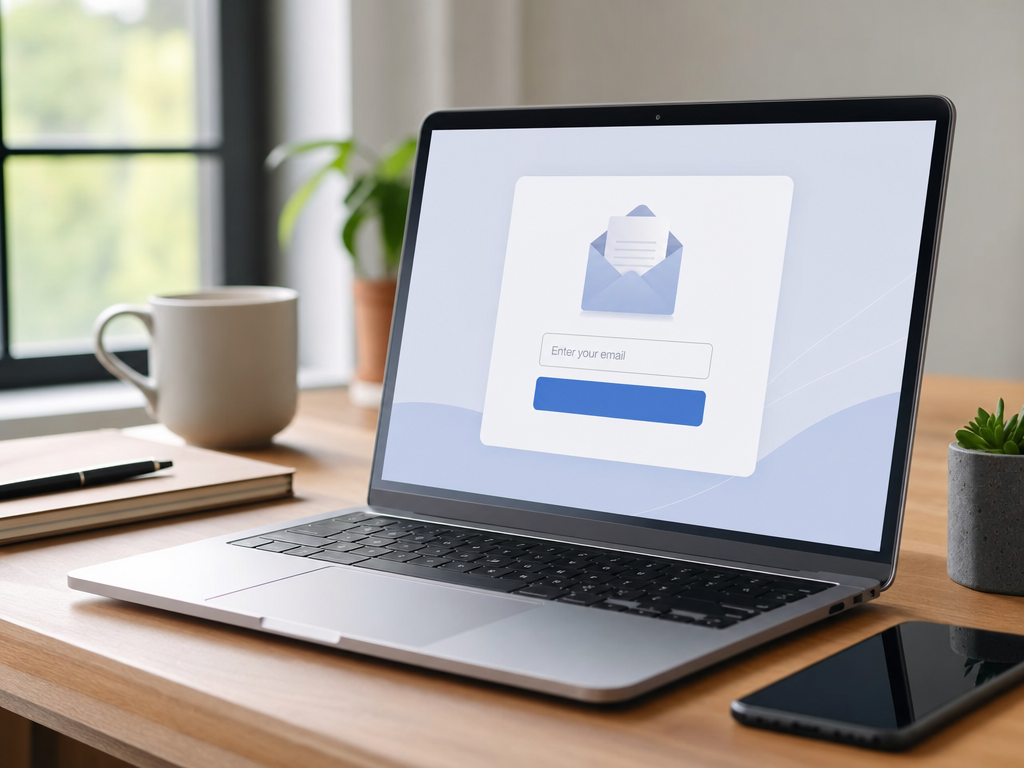
Why People Want a Gmail Account Without a Phone Number
Google has made phone verification almost mandatory during Gmail signup. The reason is simple: phone numbers help Google fight spam, fake accounts, and abuse. But there are many legitimate reasons users prefer not to attach their personal number to a new inbox.
Maybe you already use your number on five other Google accounts and Google blocks reuse. Maybe you want a clean email for freelance work, online shopping, or a side project. Or perhaps privacy is your main concern and you simply don't want Google linking another data point to your real identity.
Whatever your reason, you have options. This guide walks through every working method in 2026, ranks them by reliability, and explains where virtual SMS verification fits in.
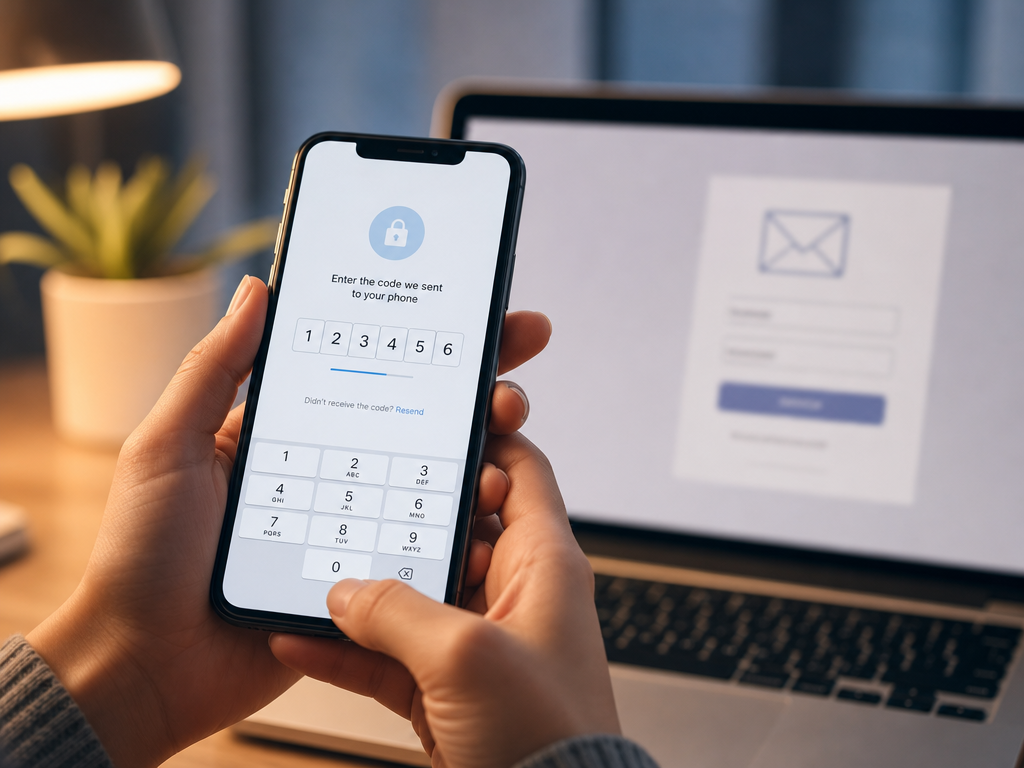
Does Gmail Always Require a Phone Number?
Not always, but in most cases yes. Google's signup flow shows or hides the phone field based on several signals:
- Your IP address and country
- Whether you are using a fresh browser profile
- Your device type (mobile vs desktop)
- Whether your account on that device already has Google services
- Whether you signed up via the Android setup wizard
If Google detects anything suspicious like a VPN, a brand new browser fingerprint, or a country with high abuse rates, the phone prompt becomes mandatory. If you look like a normal returning user, sometimes you can skip it.
This is why no single trick works for everyone. You need a method matched to your situation.
Method 1: Sign Up Through the Android Device Setup
This is the most reliable way to bypass the phone field entirely. When you set up a fresh Android phone or tablet, the operating system asks you to add a Google account. During that flow, Gmail creation is often offered without any SMS verification.
Steps:
- Factory reset an Android device or use a new one.
- Skip Wi-Fi until prompted again, then connect.
- When asked to sign in, choose Create account then For myself.
- Enter your name, birth date, and gender.
- On the phone verification screen, look for Skip or Not now.
The skip option appears more often when the device looks new and not tied to many other accounts. If the option does not appear, restart the process after a few hours from a different network.
Method 2: Use a Recovery Email Instead
Sometimes Google will accept a recovery email address in place of a phone number, especially on desktop browsers. The trick is to fill the recovery email field carefully and leave the phone field empty.
To try this approach:
- Open an incognito or private window.
- Go to accounts.google.com and click Create account.
- Fill in name, username, password.
- On the verification step, leave the phone field blank.
- Enter a working recovery email you already own.
- Continue.
If Google accepts the form, you are done. If it forces the phone field, your IP or browser signals triggered a stricter check. Switch networks, clear cookies, or try Method 3.
Method 3: Use a Virtual Phone Number for SMS Verification
When Google refuses to let you skip phone verification, the most practical solution is a virtual SMS number. Instead of giving Google your personal SIM, you rent a temporary number that receives the verification code once.
This is exactly what SMSBulk offers. You pick a country, choose Google as the service, and receive the OTP in seconds. The number stays linked to that single verification, then the rental ends. Your real phone never enters Google's database.
Why this works in 2026 when many older methods have stopped working:
- The numbers are real mobile lines, not VoIP, so Google accepts them.
- You can pick from countries worldwide, which matters because some regions have looser verification rules.
- The process takes under two minutes from signup to inbox.
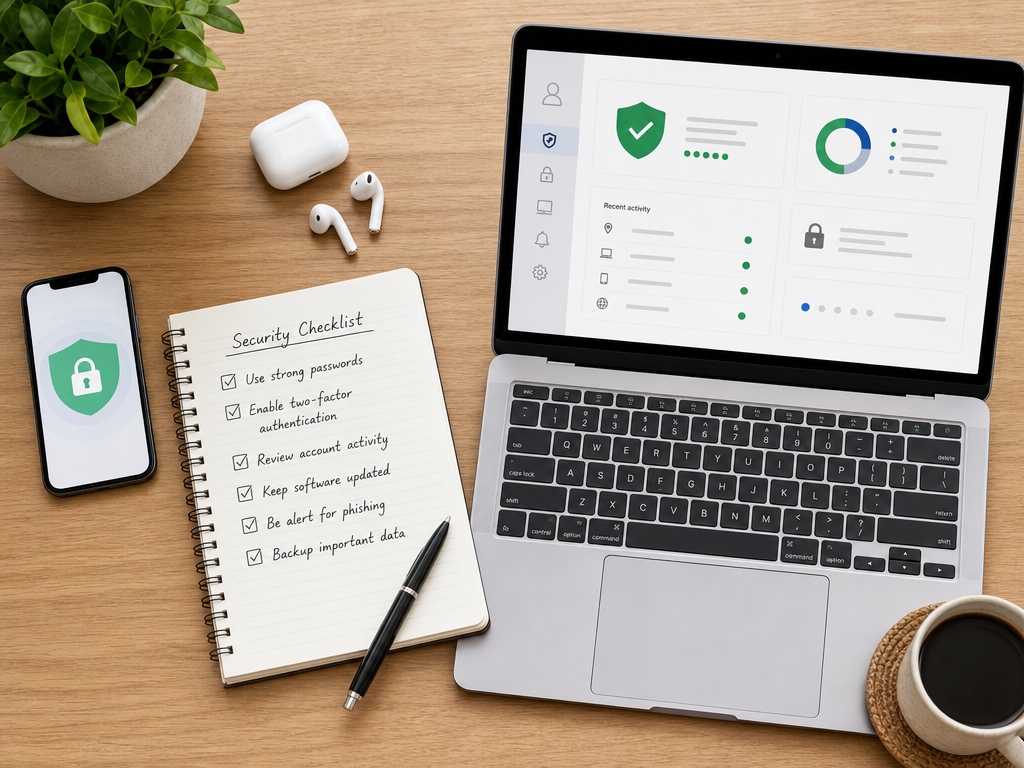
Step by Step With a Virtual Number
- Open a fresh browser session (incognito recommended).
- Visit accounts.google.com/signup.
- Fill out your name, desired Gmail address, and password.
- On a separate tab, log in to SMSBulk and rent a Google verification number.
- Paste that number into Google's phone field.
- Submit. The SMS code appears in your SMSBulk dashboard within seconds.
- Enter the code in Google and finish signup.
Once the account is verified, go straight to your Google account security settings and remove the phone number. Your Gmail will keep working without it.
Method 4: Create the Account on Mobile Data With an Older Browser
This trick is hit or miss but costs nothing to try. Google sometimes shows easier signup flows to users on standard mobile carriers using older browser versions like Firefox or Samsung Internet.
Turn off Wi-Fi, switch to mobile data, open the browser, and go through the signup. If you see the phone screen with a Skip link, you got lucky. If not, fall back to Method 3.
Method 5: Use Your Workspace or School Account
If you have access to a Google Workspace admin, they can create new Gmail addresses under a domain without ever asking the user for a phone number. Students at universities with Google for Education often get inboxes the same way. This is not relevant for personal use, but worth mentioning if you control a domain.
Common Mistakes to Avoid
- Reusing numbers across many accounts. Google detects this and blocks the signup.
- Switching VPN servers mid-signup. This looks like fraud and triggers extra checks.
- Filling fake recovery emails. If you ever lose access, you cannot recover the account.
- Skipping the cleanup step. After signup, review your privacy and security settings.
- Using public WiFi. Some networks are flagged by Google and force phone verification.
What About Privacy After Signup?
Creating the account is only half the job. Right after your first login, do this:
- Open myaccount.google.com then Security.
- Confirm recovery options are set the way you want.
- Remove any phone number you no longer need.
- Turn on two-step verification using an authenticator app, not SMS.
- Review app permissions and remove anything unfamiliar.
Using an authenticator app means you never need an SMS code to log in again. Combined with a virtual number used only during signup, your personal phone stays completely out of Google's records.
How Long Does a Gmail Account Stay Active Without a Phone?
Google does not delete accounts for missing phone numbers. However, accounts that show suspicious behavior in the first 30 days are sometimes flagged and asked for SMS verification later. To avoid this:
- Log in regularly during the first month.
- Send and receive a few real emails.
- Avoid sending bulk messages or signing up for risky services immediately.
- Add a recovery email after a couple of days.
A well behaved account typically operates indefinitely without any phone number on file.
Frequently Asked Questions
Can I really create Gmail without any verification? Sometimes, but not reliably in 2026. The Android setup method or a recovery email may work. When they fail, a virtual number is the dependable backup.
Will Google ban my account if I use a virtual number? Not for the verification itself. Bans happen when users break Google's terms, like sending spam. A clean Gmail account verified with a virtual SMS number behaves exactly like any other account.
Can I use the same virtual number for multiple Gmail accounts? No. Google tracks the numbers it has seen, and reusing one will trigger a block. Each new account needs a fresh number.
Do I need to keep the virtual number after verification? No. The number is only needed for the single SMS code. Once Gmail is active, remove the number from your account and let the rental expire.
What if Google asks for verification again later? If you log in from a new device or IP, Google may ask to confirm it is you. Use a backup email or authenticator app. You can also rent a new virtual number if needed.
Get Started With SMSBulk
If the phone screen is the only thing standing between you and a new Gmail address, SMSBulk solves it in minutes. Pick a number from countries worldwide, receive your verification SMS instantly, and finish your signup with full privacy. No SIM cards, no commitments, no exposing your personal line. Visit SMSBulk and create your account today to get a Google verification number ready for your next Gmail signup.
Готовы легко верифицировать аккаунты?
Получайте мгновенные SMS-коды из 190+ стран менее чем за 30 секунд.