

eSIM Not Supported on iPhone? Here's How to Fix It
Why Your iPhone Says eSIM Is Not Supported
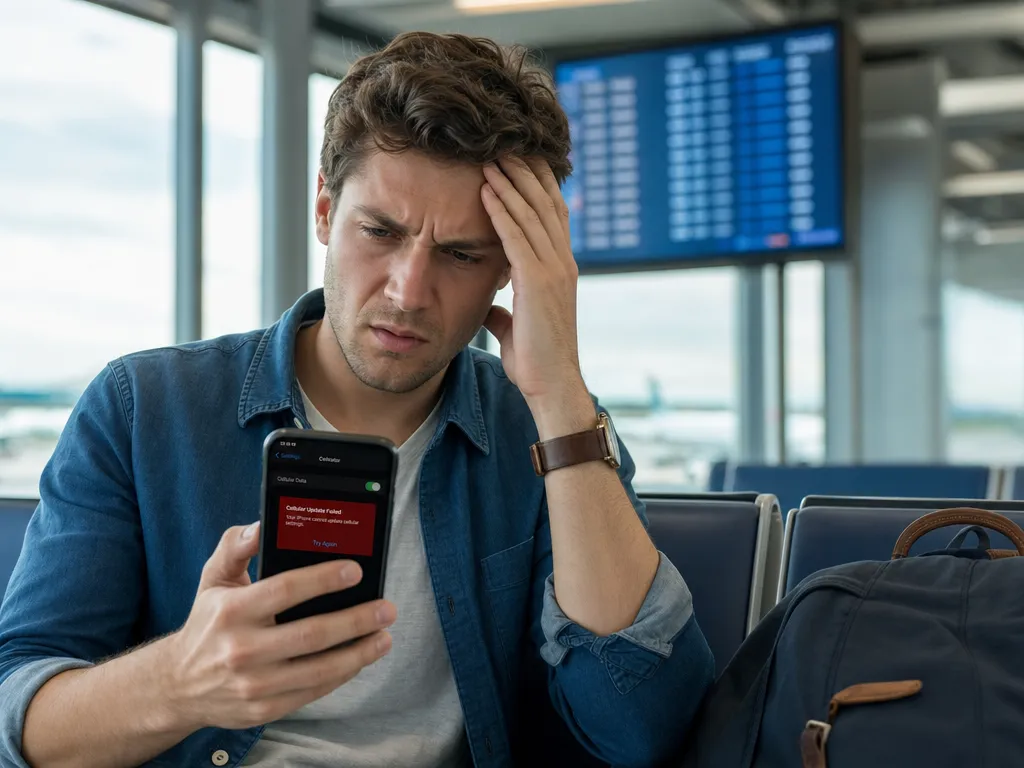
You bought a travel data plan, scanned the QR code, and your iPhone throws an error. The message might read "eSIM not supported," "cellular plan cannot be added," or "unable to activate." It is frustrating, especially when you are about to board a flight.
The good news: most of these problems have simple causes. Your phone may be carrier locked, running old software, or you may have hit a technical limit. Let's walk through every fix so you can get connected fast.
First Check: Does Your iPhone Even Have eSIM?
Not every iPhone supports eSIM. Models older than the iPhone XS, XR, or XS Max lack the hardware entirely. If you own an iPhone SE (first generation) or anything from the iPhone X and earlier, eSIM simply is not built in.
Here is a quick way to confirm your device supports it:
- Open Settings.
- Tap Cellular (or Mobile Data).
- Look for Add eSIM or Add Cellular Plan.
If that option appears, your hardware is capable. If it does not, the phone itself is the limitation and no fix will add eSIM support.
Regional model differences
There is one important exception. iPhones sold in mainland China often ship with dual physical SIM trays and no eSIM. Some Hong Kong and Macau variants also differ. If you bought your phone in one of these regions, it may lack eSIM even if the model number normally supports it.
The Most Common Cause: Carrier Lock
The single biggest reason an iPhone rejects a travel eSIM is a carrier lock. When you buy a phone on a contract or installment plan, the carrier often locks it to their network. A locked phone will refuse any SIM or eSIM that is not from that carrier.
To check your lock status:
- Go to Settings.
- Tap General, then About.
- Scroll to Carrier Lock.
- You want it to read No SIM restrictions.
If it says anything else, your phone is locked. Contact your carrier and ask them to unlock it. Most carriers unlock devices once the contract is paid off, though the process can take a few days. Plan ahead if you know you will travel.
A carrier-locked iPhone is the number one reason travel eSIMs fail to install. Always check this before buying a data plan.
Update to the Latest iOS Version
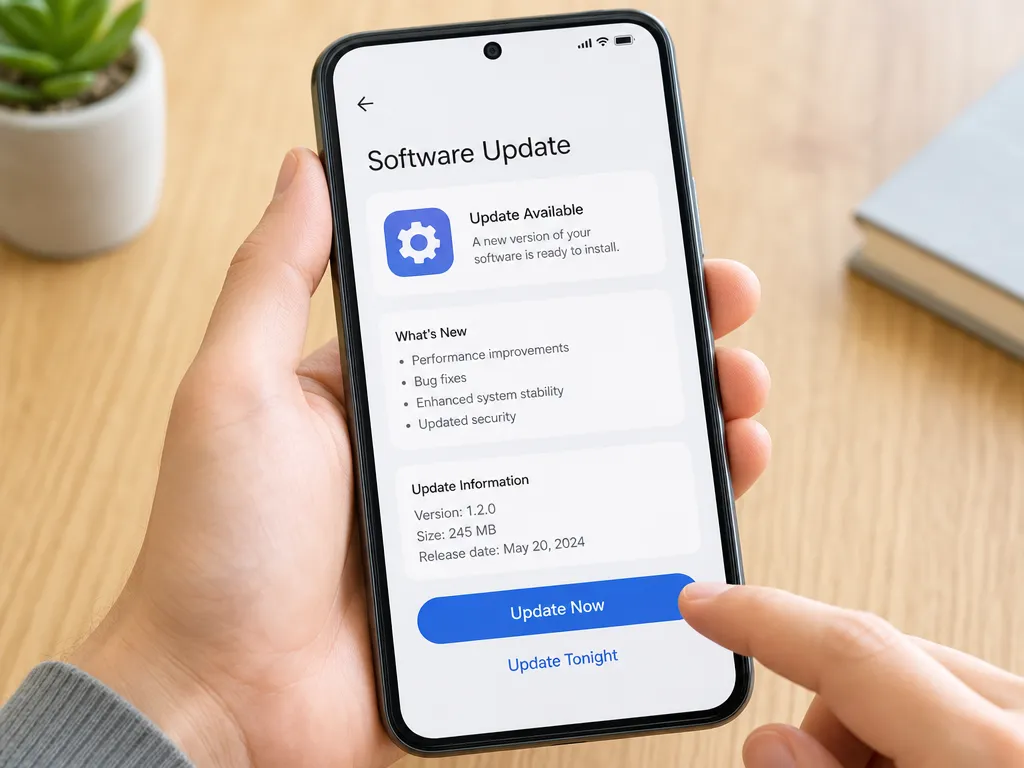
Outdated software causes activation errors more often than people expect. Apple has improved eSIM handling with nearly every major iOS release. Running an old version can break QR scanning or plan activation.
To update:
- Open Settings.
- Tap General, then Software Update.
- Install any available update.
Restart your iPhone after updating. A simple reboot clears temporary glitches in the cellular stack and often resolves the "not supported" message on its own.
Check How Many eSIMs You Have Stored
Modern iPhones can store multiple eSIM profiles, but there is a limit to how many stay active at once. If you have installed several eSIMs from past trips, your phone may refuse a new one until you remove old profiles.
Here is how to clean up:
- Open Settings and tap Cellular.
- Review the list of plans under eSIMs.
- Tap any plan you no longer need.
- Select Remove eSIM.
Only delete a profile if you are certain you will not need it. Removing an eSIM usually means you cannot reinstall the same profile without a new QR code from the provider.
Wi-Fi and Connection Problems During Setup
Installing an eSIM requires an internet connection. The profile downloads from the provider's server the moment you scan the code. If your Wi-Fi is weak or drops mid-install, the activation fails and may display a misleading error.
Before you try again:
- Connect to a stable Wi-Fi network.
- Avoid public networks with login portals that block downloads.
- Turn Airplane Mode off.
- Retry the QR scan or manual entry.
If you are already abroad without data, use hotel or airport Wi-Fi to complete the install. This is why buying and installing your eSIM before you leave home is the smartest approach.
QR Code Errors and Manual Entry
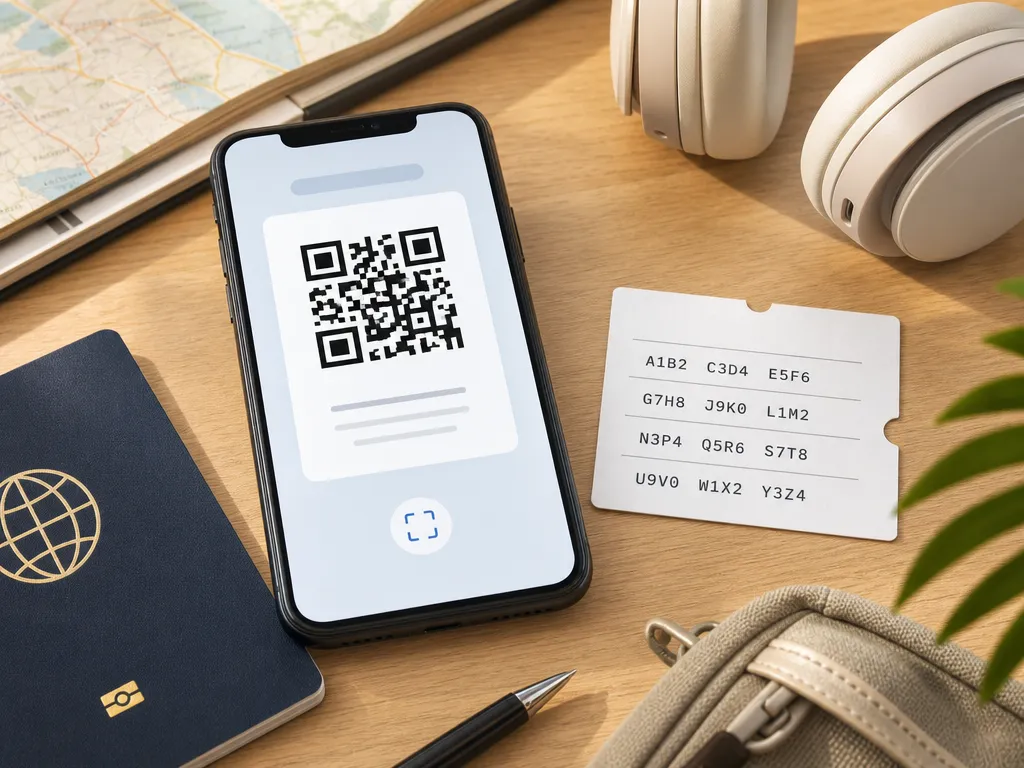
Sometimes the QR code itself is the issue. A blurry screenshot, a cracked screen, or dim lighting can stop the camera from reading it. If scanning fails, most providers give you a manual option.
With SMSBulk eSIM, for example, you receive both a QR code and the manual activation details (an SM-DP+ address and activation code). To enter them by hand:
- Go to Settings, Cellular, Add eSIM.
- Choose Enter Details Manually.
- Paste the SM-DP+ address and activation code.
- Confirm and wait for activation.
iPhone users on iOS 17.4 and later can also use direct install, which activates a plan without scanning anything. That removes the QR step completely and avoids most camera-related failures.
Turn On Data Roaming for the Travel eSIM
A travel eSIM often activates correctly but shows no data because roaming is switched off for that specific line. This trips up many first-time users.
To fix it:
- Open Settings and tap Cellular.
- Select your travel eSIM plan.
- Turn on Data Roaming.
- Set the eSIM as your primary line for Cellular Data.
Data roaming sounds scary, but on a travel eSIM it simply lets the plan connect to local networks. You are using prepaid data you already paid for, not your home carrier's expensive roaming rates.
When Nothing Works: Reset Network Settings
If you have ruled out carrier lock, updated iOS, and confirmed your hardware supports eSIM, a network reset can clear deeper glitches.
- Go to Settings, General, Transfer or Reset iPhone.
- Tap Reset, then Reset Network Settings.
- Enter your passcode and confirm.
This wipes saved Wi-Fi passwords and cellular settings but does not delete your data. After the reset, try adding the eSIM again.
Choosing an eSIM That Just Works
A reliable provider prevents most headaches before they start. When picking a travel data plan, look for clear device compatibility notes, both QR and manual activation, and iOS direct install support.
SMSBulk eSIM, the store behind this blog, covers 200+ destinations with transparent pricing and instant QR delivery. Because it supports iOS direct install, iPhone users skip the QR camera step entirely. If you are still weighing your options, our guide on eSIM vs physical SIM breaks down the trade-offs, and the eSIM alternatives comparison covers the seven factors that actually matter.
Travel eSIMs are data-only. That means they give you internet but not a phone number for SMS codes. If you need to receive a verification code from WhatsApp, your bank, or Google while abroad, pair your eSIM with an SMS verification number on the same SMSBulk account. Our article on whether an eSIM can receive verification SMS explains exactly why this combination works.
Quick Troubleshooting Checklist
Before you contact support, run through this list:
- Hardware: Does Settings show an "Add eSIM" option?
- Carrier lock: Does About show "No SIM restrictions"?
- Software: Is iOS fully updated and the phone rebooted?
- Storage: Have you removed unused eSIM profiles?
- Connection: Are you on stable Wi-Fi during install?
- Roaming: Is data roaming on for the travel eSIM?
- Reset: Have you tried Reset Network Settings as a last step?
Nine times out of ten, one of these steps solves the problem.
Frequently Asked Questions
Can I add eSIM to an iPhone that never had it?
No. eSIM is a hardware feature. If your model shipped without it, no software update or setting can enable it.
Why does my new eSIM install but show no signal?
Usually data roaming is off, or you have not set the eSIM as your active data line. Check both in Cellular settings.
Does removing an eSIM delete my data plan permanently?
Often yes. Once removed, you may need a fresh QR code from the provider to reinstall. Only delete profiles you are done using.
Can I use one QR code on two iPhones?
No. An eSIM profile is tied to a single device. Installing it on a new phone requires a new profile from the provider.
Get Started with SMSBulk
Don't let a compatibility error ruin the first hour of your trip. Check your iPhone for eSIM support and carrier lock today, then grab a data plan from SMSBulk eSIM covering 200+ destinations with instant delivery and iOS direct install. Add a virtual number from the same wallet so you never miss a verification code abroad, and you will land connected and ready to go.